Tired of losing access to your favorite Line Music tracks when your subscription ends? DumpMedia Line Music Converter lets you download and convert Line Music songs into universal audio formats for unlimited offline playback. No ads. No restrictions. No internet required. Follow the simple steps below to get started!
Contents Guide Part 1. Install and Register Line Music Converter Part 2. How to Convert Line Music to MP3
DumpMedia Line Music Converter is supported on Mac and Windows devices currently. You can download the installation package from its product page or simply by clicking the download button provided here.
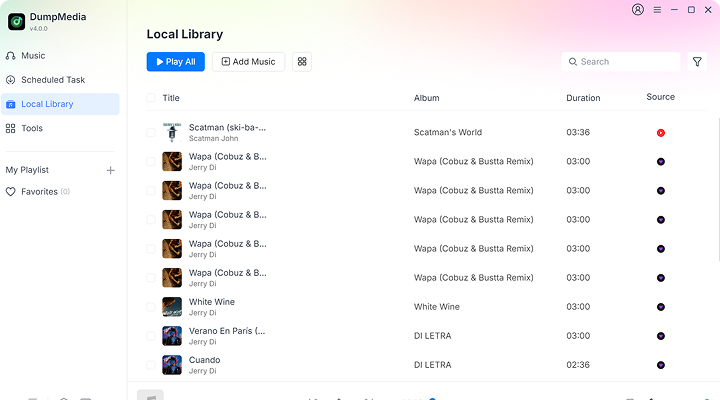
After installation, open DumpMedia Line Music Converter on your computer. You will see a clean and intuitive interface designed to make conversion simple — even for first-time users.
Tip: Make sure you’re connected to the internet for the best experience.
Launch Line Music Converter after installation, and click the "Unactivated"(or Profile icon) in the right corner. Enter the email address that you used to place the order and the code in the pop-up window.
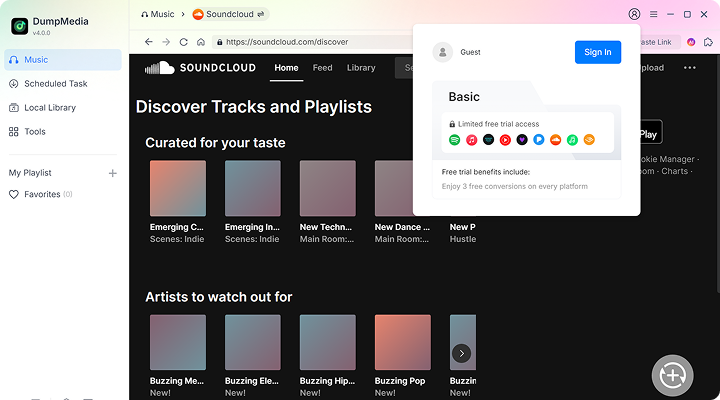
Tip: To buy the registration code, you can navigate to the DumpMedia Online Store. DumpMedia offers different subscription plans for you. You can also contact our customer service team for discounts.
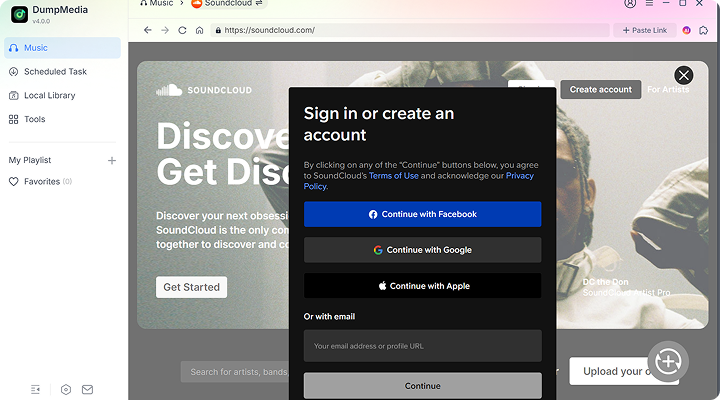
Launch the Converter, and sign in to your Line Music account. Next, search for and select the songs you want to download and convert. You can also choose the song, playlist, or album you like by dragging them to the “+” button.
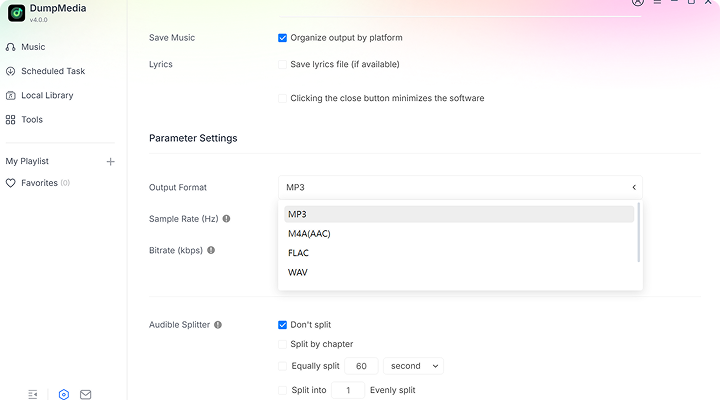
DumpMedia Line Music Converter provides common format options, including MP3, M4A, FLAC, WAV, AIFF, AAC, and ALAC. With songs in a normal format, you can easily share, edit, or transfer them. In the Convert window, you can choose the output format you like, output quality, and more. In Output Setting, you can also choose the output path for converted files.
Finally, directly click the "Convert" icon, and the selected songs will be converted to MP3 and other select output formats immediately. DumpMedia also supports batch conversion, and you can check the "Title" box, then click the "Convert All" icon.
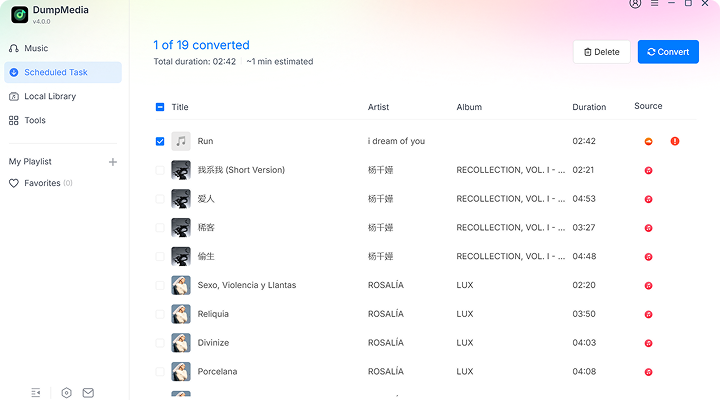
Once the conversion is done, you can check the converted music files by clicking the "Finished" tab. Click the "View Output File", and you will go to the folder that you set in the previous step. Now you can browse all the downloaded tracks.